Changing test and tag software without losing your history
Changing test and tag software? When to switch in the retest cycle, how to keep your tags, asset numbers and old certificates, and what to tell your clients.
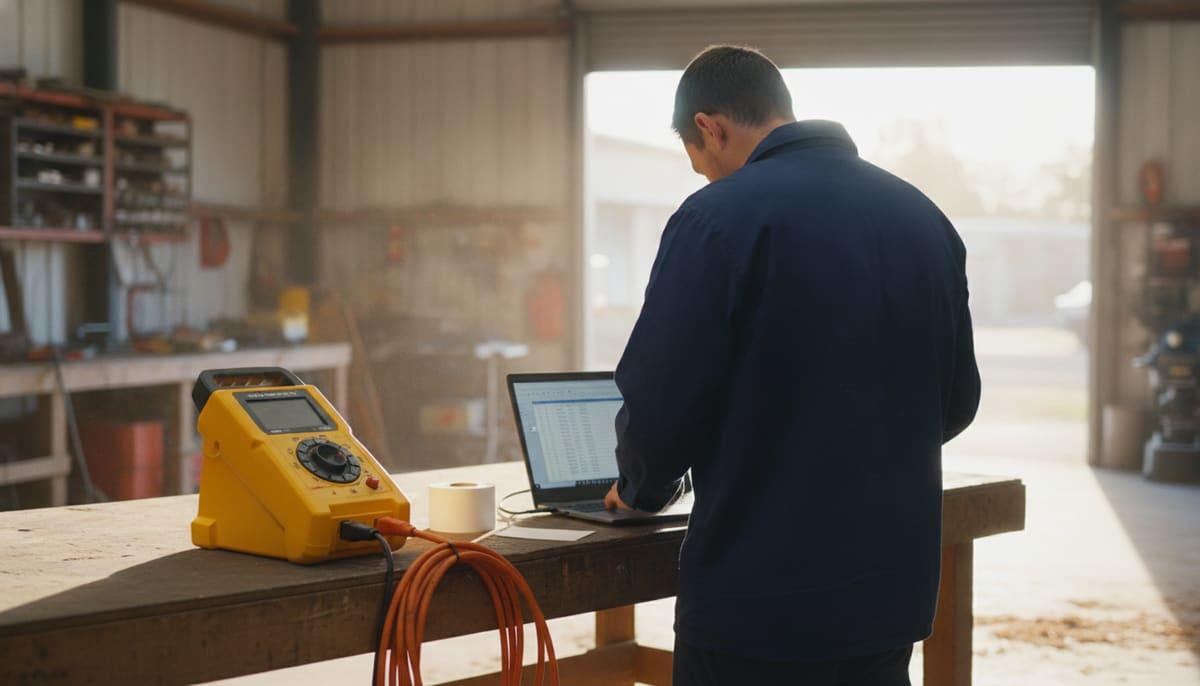
You can change test and tag software without losing anything if you do it in the right order: export everything from the old system first, keep a copy you never touch, switch between visits rather than halfway through one, and carry your existing asset numbers across so the tags already on your clients' equipment still point to the right record. The tags themselves don't need replacing. Each one records a test that was done, and changing software doesn't undo that.
Most of the risk in a switch isn't the import. It's the few weeks where two systems are both half in use. This guide covers the timing, what to keep, what to tell clients, and a checklist you can work through. If you're coming from a particular program, our step-by-step export guides are linked further down.
General information only, not legal advice. Record-keeping rules differ by state and industry. Check your state or territory regulator and any client or site requirements.
Why the timing matters more than the software
Test and tag work runs on a cycle. Each client has items due at set intervals, and you rebook them on that schedule. A switch goes smoothly when it fits that cycle and badly when it cuts across it.
The worst time to switch is halfway through a client's visit, or halfway through a big multi-site client's round. Some sites end up tested in the old system and some in the new one. Due dates, reports and certificates come out of two places, and it's easy to miss something.
Better times to switch:
- Between visits. Move a client across after you've finished their visit and before the next one is due. The next visit starts and finishes in the new system.
- Client by client. You don't have to move everyone on one day. Import one client, run their next visit in the new software, then move the next. That keeps any problem small.
- In a quiet month. If your work bunches up at certain times of year, such as school holidays or end-of-financial-year shutdowns, switch before or after the rush, not during it.
The rule that matters: once a client has moved, stop entering their results in the old system. Two registers always drift apart.
Step 1: Export everything before you change anything
Before you import a single row, get a full copy of your data out of the old software. Do this while your old subscription or licence is still active. Check what happens to your data when you cancel, because some products limit access once a plan ends.
Export:
- The register: every item, with its asset number, description, client, site, location, class and retest interval.
- Test history: dates, results and readings for each test, not only the latest one, if the software allows it.
- Certificates and reports you've already sent clients, as PDFs.
- Failed and out-of-service items, with any repair notes.
- Client and site details: names, addresses and contacts.
Most desktop test and tag programs export to CSV or Excel. How you do it depends on the program, so use the guide for yours:
- Exporting your records from WinPATS
- Moving your records off PATGuard 3
- Getting your data out of Metrel ES Manager
- Moving from the SwiftPAT app
- Downloading results from Megger, Fluke, Kewtech and other testers
If your records live in spreadsheets, you already have the export. See moving a register off spreadsheets instead.
Step 2: Keep a copy you never touch
Save the raw export files, and a backup of the old program's database if it has one, somewhere safe that you won't edit. Make your clean-up changes on a copy.
There are two reasons. First, if something goes wrong in the import you can start again from the original. Second, those files are part of your record of past work.
In the states and territories that use the model WHS Regulations, a record of each test must show who did it, the date, the outcome and when the next test is due. It must be kept until the item is next tested, permanently removed from the workplace or disposed of. SafeWork SA notes the record can be a tag, a logbook, a register or a computerised database (SafeWork SA). Some work needs longer: SafeWork SA says RCD test results on construction and demolition sites should be kept for at least five years. Queensland and Victoria have their own rules. Our guide to what test and tag records to keep sets them out by state.
In practice, keep the old exports and PDFs for at least as long as the longest of those periods applies to your clients. Many operators keep them indefinitely, since the files are small.
Step 3: Keep your asset numbers
This is the part that decides whether the switch is invisible on site. Your clients' equipment already carries tags and asset labels with numbers from your old system. If the new software gives every item a fresh number, those labels stop matching the register, and you'll be searching for items by description on the next visit.
So check two things before you choose new software:
- Does the import keep the asset number column as the item's number? It should, not just store it in a notes field.
- Can you carry on numbering from where you left off? New items added at a site should follow the same pattern.
Koalaris does both. Items imported from a spreadsheet keep their old numbers, so the stickers already on equipment still find the right item when you search or scan. You can also give a site its own numbering, such as SRM1001, and new items there take the next number.
While you're in the file, tidy obvious problems before you import: duplicate asset numbers, items listed under the wrong site, and dates in mixed formats. Our guide to cleaning equipment data before import has a short list.
Step 4: Import, then check a few items by hand
Import one client first. In Koalaris, you open the Register, choose Import, pick the client and site, and drop in the CSV or Excel file. Lyra AI matches your column headings to register fields and you review every match before anything is loaded. The two-minute import tutorial shows it.
Then compare three or four items against the old system:
- description and asset number
- location
- last test date and result
- next due date
If they match, that client is done. If a date or result is off, it's almost always a column that was matched to the wrong field. Fix the match and import again rather than editing items one at a time.
Step 5: Decide what happens to the tags already on site
You don't need to retag equipment because you changed software. The tag on an item shows a test that happened, by a named person, on a date. That stays true whatever program you use to keep the register.
What changes is the next tag. From the first visit in the new system, items get tags printed from the new software. A few things to check before that visit:
- Tag printer. Will your current printer work with the new software? Koalaris prints straight to a Zebra ZQ520 or ZQ521 or a Godex RT200 over Bluetooth, and to a Brother or other label printer through the print dialog. Our test tag printer comparison covers the options.
- Tag layout. Make sure the new tag still carries the details your state requires, such as who did the test and the test or retest date. Print a test tag before the visit, not on site.
- Mixed tags for one cycle. For one round, a site will have some items with old-style tags and some with new. That's normal and goes away as each item comes up for retest.
Step 6: Tell your clients (briefly)
Most clients won't notice a software change if their visit runs the same way. Tell them anyway, in a short email before their next visit, if any of these change for them:
- Certificates or reports look different. Say so, so their office doesn't think something is wrong.
- They'll get a new way to see their records, such as a client portal login. Koalaris gives clients a free read-only portal with their register, history and certificates, never your prices or invoices.
- Their previous certificates. Tell them their earlier certificates are still valid records, and that you'll send copies if they need them for an audit.
There's no need to explain the software in detail. One paragraph is enough: what's changing, what stays the same, and who to ask.
A switching checklist
| When | Task |
|---|---|
| Before you start | Check how the old software exports and what happens to your data when you cancel |
| Before you start | Make sure the new software keeps your asset numbers and works with your tag printer |
| Day one | Export the register, test history, certificates and client details |
| Day one | Save the raw exports somewhere safe and work on a copy |
| Per client | Tidy the file, import it, and check three or four items by hand |
| Per client | Stop entering that client's results in the old system |
| Before the next visit | Print a test tag and send the client a short heads-up |
| After the last client | Keep the old exports and PDFs; cancel the old subscription only once you're sure you have everything |
Trying new software without risk
The safest way to change test and tag software is to try the new one on real records before you commit. Koalaris has a Free plan with no card and no end date, and no limit on items, clients or sites, so you can import a client, run a visit and print tags while your old system is still there. Free includes a starter Lyra AI import allowance. If you'd rather not do the import yourself, send us your export and we'll load it for you, free, and you check the register before your first visit.
When you're comparing options, our buyer's checklist for test and tag software lists what to check, including how easily you can get your data out again later.
Common questions
Will I lose my test history if I change software?
Not if you export it first. Most programs export history to CSV or Excel. Keep the raw files as your record, and import the history the new system can hold. Keep old certificates as PDFs either way.
Do I have to retag everything when I switch?
No. Existing tags record tests that were done and stay on the equipment until each item is next tested. New tags come from the new software from the next visit.
Can I keep my old asset numbers?
You should, so the labels already on equipment still match the register. Check that the new software keeps the asset number as the item's number on import. Koalaris does.
How long does a switch take?
The import itself is usually quick. What takes time is tidying a messy file and checking each client. Moving one client at a time, between visits, spreads the work out and keeps mistakes small.
Should I run both systems side by side?
Only per client and only briefly. Once a client has moved, enter their results in the new system only. Running two live registers for the same client is how due dates get missed.

Koalaris is test and tag software built in Australia. See what it does.
Keep reading
 Guides
Test and tag for events and markets: a guide for operators
Test and tag for events and markets: what organisers and councils ask stallholders for, AS/NZS 3002, leads and RCDs, and how operators run event-day testing.
 How-to
Test and tag register template (free CSV) and how to fill it in
Download a free test and tag register template in CSV. What each column means, the extra columns worth adding, and how to stop Excel breaking your tag numbers.
 How-to
How to export results from your PAT tester: Megger, Fluke, Kewtech, Seaward and Metrel
Export test results from Megger, Fluke, Kewtech, Seaward and Metrel PAT testers and their software into a spreadsheet, then import them without retyping.
See your register the way Lyra sees it.
Start free, for as long as you like. No card needed.