Looking for a PATGuard alternative? How to move your test and tag records
Thinking of leaving PATGuard? How to export your test and tag records to CSV, import them into a new register without retyping, and what to check first.
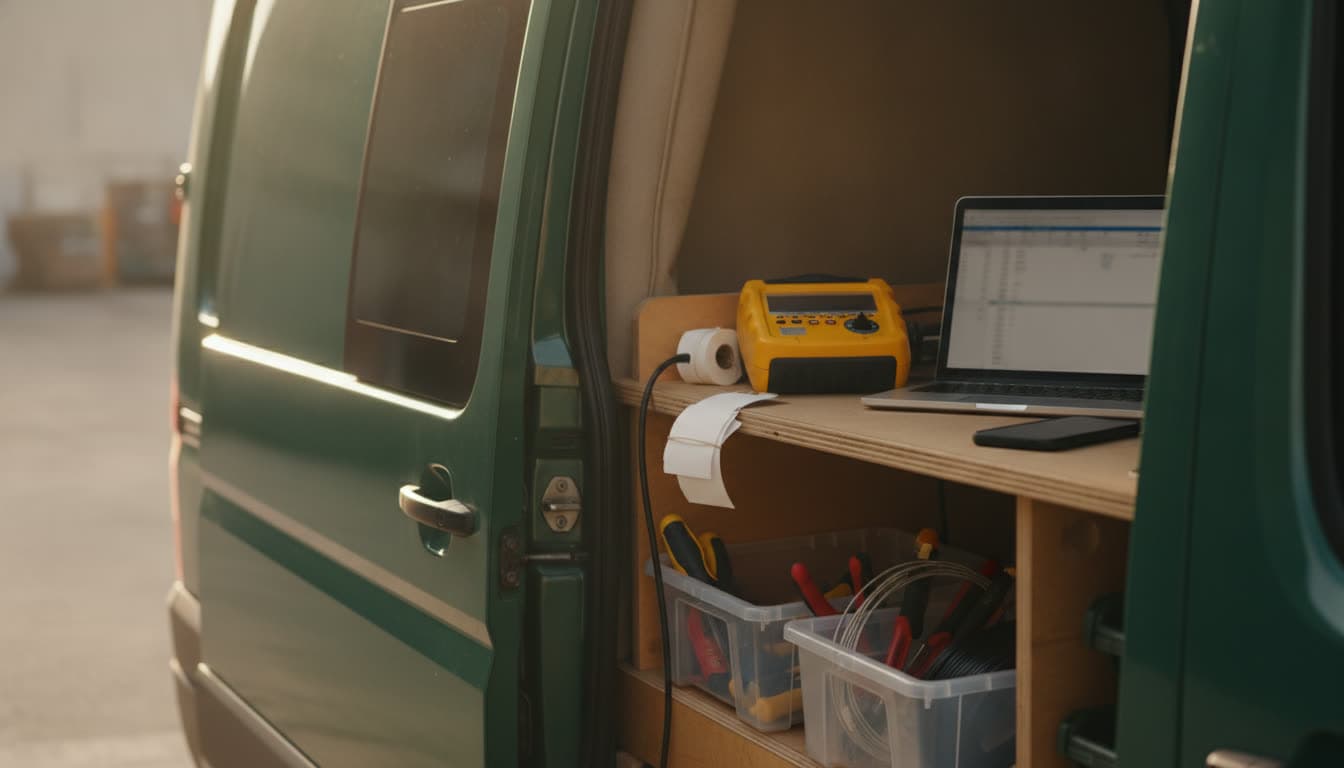
PATGuard has been the default test and tag software in a lot of Australian vans for years. It came bundled with Seaward testers, it does the job, and once your clients are in it, leaving feels like a lot of work.
But plenty of testers start looking around at some point. Maybe the desktop version only lives on one office PC. Maybe you're paying for extra user licences as the team grows. Maybe you want invoices, card payments and a client portal in the same place as the register.
Whatever the reason, the hard part isn't choosing new software. It's getting years of records out of the old one. This guide covers exactly that.
Why testers look for a PATGuard alternative
These are the reasons we hear most often:
- The register is stuck on one computer. The desktop PATGuard 3 runs on Windows. If results only get entered back at the office, the register is always a day behind.
- Results get typed up twice. Written on paper or downloaded from the tester on site, then entered again at night.
- Invoicing happens somewhere else. The test data is in one program, the invoice in another, and chasing payment in a third.
- Clients keep asking for their records. Every "can you send me our register?" email is ten minutes of exporting and attaching.
- Licence costs grow with the team. Adding a second tester shouldn't feel like a major purchase.
Moving off a spreadsheet instead? Read how to move your test and tag register off spreadsheets.
If none of those bother you, PATGuard may still be the right fit, and that's fine. If two or more sound familiar, keep reading.
What to look for before you switch
Whatever you move to, check it handles these before you commit:
| Must have | Why it matters |
|---|---|
| Import from CSV or Excel | You shouldn't retype a single item |
| Works offline on a phone | Plant rooms and basements rarely have signal |
| AS/NZS 3760 retest intervals | Next due dates should work themselves out |
| Certificates and reports per client | It's what your clients actually pay for |
| Client access to their own register | Fewer "please send our records" emails |
| Invoicing in the same app | The test visit and the invoice are one job |
| A free trial with your real data | A demo account tells you nothing about your file |
The last one is the most important. Always trial a new system with your own export, not sample data.
Step 1: Export your records from PATGuard 3
The desktop PATGuard 3 can export straight to a CSV file that opens in Excel. Seaward's own support article sets out the steps:
- In PATGuard, right-click the client, site or location you want to export.
- Choose Send To, then File... (not Email).
- Change Save as type to Spreadsheet (*.csv).
- Name the file and save it.
A few things worth knowing:
- Choose your columns first. The columns shown in PATGuard's main right-hand window are the ones that end up in the CSV. Right-click the column headers to add fields like make, model, serial number, test date and result before you export. Seaward explains this in a separate article.
- PATGuard Lite can't export. Seaward notes that this isn't possible in the Lite version.
- On PATGuard Cloud? Look for its export or reporting options, or ask Seaward support how to get a CSV of your assets and latest results.
Step 2: One file per client
Export each client as its own file. Right-clicking the client (rather than the whole database) does this for you. It keeps each import small and easy to check.
Name the files after the client, for example Riverside Cafe.csv. You'll thank yourself later.
Step 3: Have a quick look in Excel
Open each file and check:
- Every item has a description. It's the one field a register can't do without.
- Dates look like dates. If a column shows
########, widen it. It's just too narrow. - No totals rows or notes typed below the data.
- Repeated items are fine. If an item appears once per test, a good importer keeps the latest test and works out the next due date from there.
You don't need to rename columns or reorder anything.
Step 4: Import into Koalaris
In Koalaris, open the Register, choose Import, pick the client and drop in the file. Excel (.xlsx, .xls) and CSV files both work.
Lyra AI, the assistant built into Koalaris, reads your column names, whatever they're called, and matches each one to a register field: asset code, item name, location, class, last test date, result, next due, make, model, serial number, earth, insulation and leakage readings, and notes. You review every match before anything is imported, and you can change or skip any column.
Rooms and locations that don't exist yet are created for you. Items that appear more than once keep their latest test, marked as imported, so the history you bring across is honest about where it came from.
Watch the two-minute import tutorial.
Step 5: Check, then switch over
Open three or four imported items and compare them with PATGuard: description, last test date, result and next due date. If they match, you're done with that client.
Then make a clean cut:
- Keep your PATGuard export files somewhere safe. They're your record of past work.
- Stop entering new results into PATGuard. Two registers always drift apart.
- From the next visit, test straight into the Koalaris field app on your phone, even with no signal. The register, test tags, certificates and the client's portal update as you go. See everything Koalaris does for test and tag businesses.
What about my testers and tag printers?
Your tester doesn't care which software holds the register. With Koalaris you record each result in the field app as you test, and Lyra AI can read a rating plate photo to fill in make, model and serial number for new items. Ask us if you'd like to talk through how your current tester and tag printer fit in.
Common questions
Will I lose my test history?
No. Each item comes across with its last test date and result, and the next due date is worked out from the retest interval. Keep your PATGuard export files as your archive of older tests. From the switch onwards, every test adds to the item's history automatically.
How long does it take?
Most clients take a few minutes each: export, import, check a few items. A business with 30 clients can usually move across in an afternoon.
Do I need to tidy the columns first?
No. Lyra AI suggests a match for each column, and you confirm each match before anything is imported.
Is Koalaris compliant with AS/NZS 3760?
Koalaris records tests against AS/NZS 3760 retest intervals and produces certificates and reports for each client. See our test and tag frequency guide for the intervals.
What does it cost?
Plans start at $29 a month for a solo tester. Spreadsheet import with Lyra AI is in the Pro and Business plans and in the 14-day free trial, so you can try it on your own PATGuard export before paying anything. See pricing.
Ready to see your own records in a live register? Start a free trial, no card needed, and import your first PATGuard export today.
PATGuard is a trademark of Seaward. Koalaris is not affiliated with or endorsed by Seaward.

Koalaris is test and tag software built in Australia. See what it does.
Keep reading
 Guides
How often does equipment need testing and tagging? A plain-English guide
Re-test intervals for test and tag in Australia, explained simply: what sets them, typical intervals by environment, and how to keep track of every due date.
 How-to
How to move your test and tag register off spreadsheets
A step-by-step guide to moving your test and tag records from Excel into a live register, without losing history or retyping a thing.
 Assistive technology
Keeping good service records for assistive technology
What to record when you service hoists, beds and mobility equipment, and how to share it with care providers without the paperwork.
See your register the way Lyra sees it.
Start a 14-day free trial of Pro. No card needed.