How to export results from your PAT tester: Megger, Fluke, Kewtech, Seaward and Metrel
Export test results from Megger, Fluke, Kewtech, Seaward and Metrel PAT testers and their software into a spreadsheet, then import them without retyping.
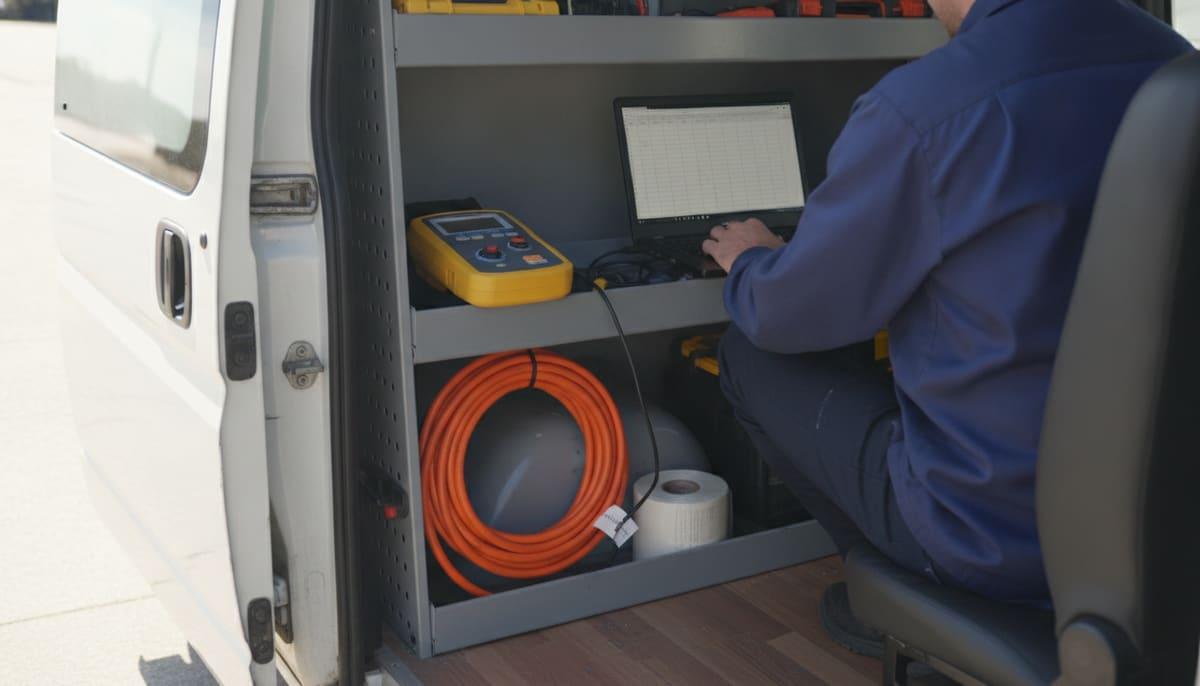
To export results from a PAT tester, you usually go through the tester maker's PC software, not the tester itself. The results travel from the tester to that software (some models can also save straight to a USB stick), and the software exports a CSV or Excel file that any other register can import. The menu names are different for every brand, so this guide sets out the route for five common ones, using each maker's own documentation.
Menu names come from the manufacturers' manuals and help pages at the time of writing. Firmware and software versions change, so check your own version's help if a step doesn't match.
The short version
| Tester or software | How results come out | What you get |
|---|---|---|
| Megger PAT400 series | On the tester: Data tab, Export Results to USB | A CSV file of every asset |
| Fluke 6500-2 and 6200-2 | Fluke DMS software: listing export | A text or Excel file |
| Kewtech KT77 | On the tester: Download Results, to a USB stick or to PC software over a serial cable | Depends on the PC program |
| Seaward testers using PATGuard 3 | In PATGuard: right-click, Send To, File... | A CSV file |
| Metrel testers using ES Manager | In ES Manager: Main tab, ToExcel Basic PAT export | An Excel file |
Megger PAT400 series
The PAT400 series can write its results straight to a USB stick. Megger's CertSuite help article gives the steps on the tester:
- Plug a USB stick into the PAT400.
- Open the Data tab and select Export Results to USB.
- Name the file and save the results.
The result is a .csv file holding every asset on the tester. That's handy, but it means one file can hold several clients. Open it in Excel and split it into one file per client before you import anywhere: each import stays small and easy to check.
If you use Megger's PowerSuite software rather than CertSuite, it has its own transfer from the PAT400. Check the software's help for its export options.
Fluke 6500-2 and 6200-2
Fluke publishes the layout of the 6500-2's CSV file (for firmware 1.8.3). Each line is one appliance: memory location, site, customer, user, date and appliance number first, then whether it was an auto or single test and the visual result, followed by blocks of readings such as protective earth bond and insulation resistance. It's a wide file, so expect a lot of columns.
To get your records into Excel, Fluke's older DMS software supports the 6500-2 and 6200-2 and has an "export function for listings in text or Excel format". Fluke notes that DMS versions 1.8 and lower rely on Access 2010 and recommends version 1.9 or higher.
Fluke's newer TruTest software supports the 6500, the 6500-2 and Beha-Amprobe GT-series testers. Fluke's page lists saving reports and certificates as PDF and XML, but it doesn't say whether TruTest exports a spreadsheet of your register. Look for an export option in your version, or ask Fluke support before you rely on it.
Kewtech KT77
The KT77 instruction manual describes downloads under Main Menu, then Download Results, which opens the download options:
- Output connection: rs232 sends results over a serial cable to PAT software on a PC (leave the baud rate at 9600). usb sends them to a memory stick in the port on the front of the tester.
- Download format: SIMPLY PATS for Kewtech's PAT Manager and most other programs, SSS for Seaward's PAT software and Robin/Fluke Power Pat Plus, plus Certificate and Summary.
The manual says to check the right format with your software supplier, and that non-Seaward software may need the appliance number limited to 10 digits (an option in the setup menu). It doesn't describe a CSV export from the tester itself, so the spreadsheet comes from the PC program you download into: use that program's export.
Seaward testers using PATGuard 3
If your Seaward tester downloads into PATGuard 3, Seaward's support article gives the export: right-click the client, site or location, choose Send To, then File..., and set Save as type to Spreadsheet (*.csv). It isn't possible in PATGuard Lite.
Our PATGuard guide covers choosing the columns before you export, and what to know about PATGuard Cloud, which Seaward now sells in place of PATGuard 3.
Metrel testers using ES Manager
Metrel's ES Manager exports from the Main tab. For test and tag records, choose ToExcel Basic PAT export, which writes your structure, test data and appliance data to an Excel table. A licensed Pro Export lets you pick the columns. The full steps are in our Metrel ES Manager export guide.
Check the file before you import
Whichever brand you use, open the export in Excel and check a few things before you import it anywhere:
- One row per item. Delete any total or summary rows at the bottom.
- An asset number on every row. It's what matches the item to the tag already on it.
- Client, site and location. If they're missing, add a column, or export one client at a time.
- The last test date and result. Check the dates read as Australian day-month-year.
- The next due date or re-test interval, if your old software stores it.
- Readings, if you want them kept. They're useful history, but a register only needs the result to work out the next due date.
Importing into Koalaris
Koalaris imports .xlsx, .xls and .csv files, including exports from Metrel ES Manager, WinPATS and PATGuard. Lyra AI matches your columns to the register's fields and loads the items, readings, results and due dates. You review every match before anything is imported. The spreadsheet import tutorial shows it step by step.
Rather not do it yourself? Send us your export and we'll load it for you, free. You check the register before your first visit.
Common questions
Can Koalaris download results straight from my tester?
No. Koalaris doesn't connect to testers directly. You record results in the field app by typing or speaking the readings, or import your tester software's export file as described above.
Will I lose my test history?
Not if it's in the file. The export carries whatever columns your old software holds, so check the file has the test dates and results you want to keep before you import.
My tester brand isn't listed. What do I do?
The pattern is almost always the same: download into the maker's PC software, then use that software's export to CSV or Excel. Search its help for "export".
Do I need one file per client?
It isn't required, but it helps. Smaller files are quicker to check, and a mistake only affects one client.

Koalaris is test and tag software built in Australia. See what it does.
Keep reading
 Guides
Test and tag for events and markets: a guide for operators
Test and tag for events and markets: what organisers and councils ask stallholders for, AS/NZS 3002, leads and RCDs, and how operators run event-day testing.
 How-to
Test and tag register template (free CSV) and how to fill it in
Download a free test and tag register template in CSV. What each column means, the extra columns worth adding, and how to stop Excel breaking your tag numbers.
 Guides
Changing test and tag software without losing your history
Changing test and tag software? When to switch in the retest cycle, how to keep your tags, asset numbers and old certificates, and what to tell your clients.
See your register the way Lyra sees it.
Start free, for as long as you like. No card needed.