Set up your tag printer: Zebra, Godex or Brother
Connect a Zebra ZQ520, ZQ521 or Godex RT200 over Bluetooth, choose the label, check your logo and preview pass and fail tags before you print.
Steps
- Open Account, then Tag printer. You can also get there from Printer setup beside the print button on a visit.
- Switch the printer on and load the labels.
- Tap Connect printer and choose your Zebra from the list. For a Godex RT200, or a Zebra that doesn't show in the list, pair it in your phone's Bluetooth settings first, then tap Connect a paired printer.
- Koalaris reads the model from the printer and sets the printer type and label size for you.
- Tap Print a test tag to check the print lines up on the label. If it sits off to one side, use Nudge to move it left or right.
Which printers work
- Zebra ZQ520 and ZQ521: 50 × 100 mm wrap-around flag labels, printed straight over Bluetooth.
- Godex RT200: 43 × 99 mm wrap-around flag labels, printed straight over Bluetooth.
- Brother and other label printers: 36 mm tape or labels, through your device's print dialog.
Printing straight to a Bluetooth printer works in Chrome or Edge on Android, Windows and a Mac. On an iPhone, tags open in the print dialog instead.
Koalaris knows a ZQ520 from a ZQ521 even when someone has renamed the printer, because it asks the printer for its model rather than going by its Bluetooth name. A first connection sets everything up, and after that the device reconnects to the same printer.
Check the tag before you print
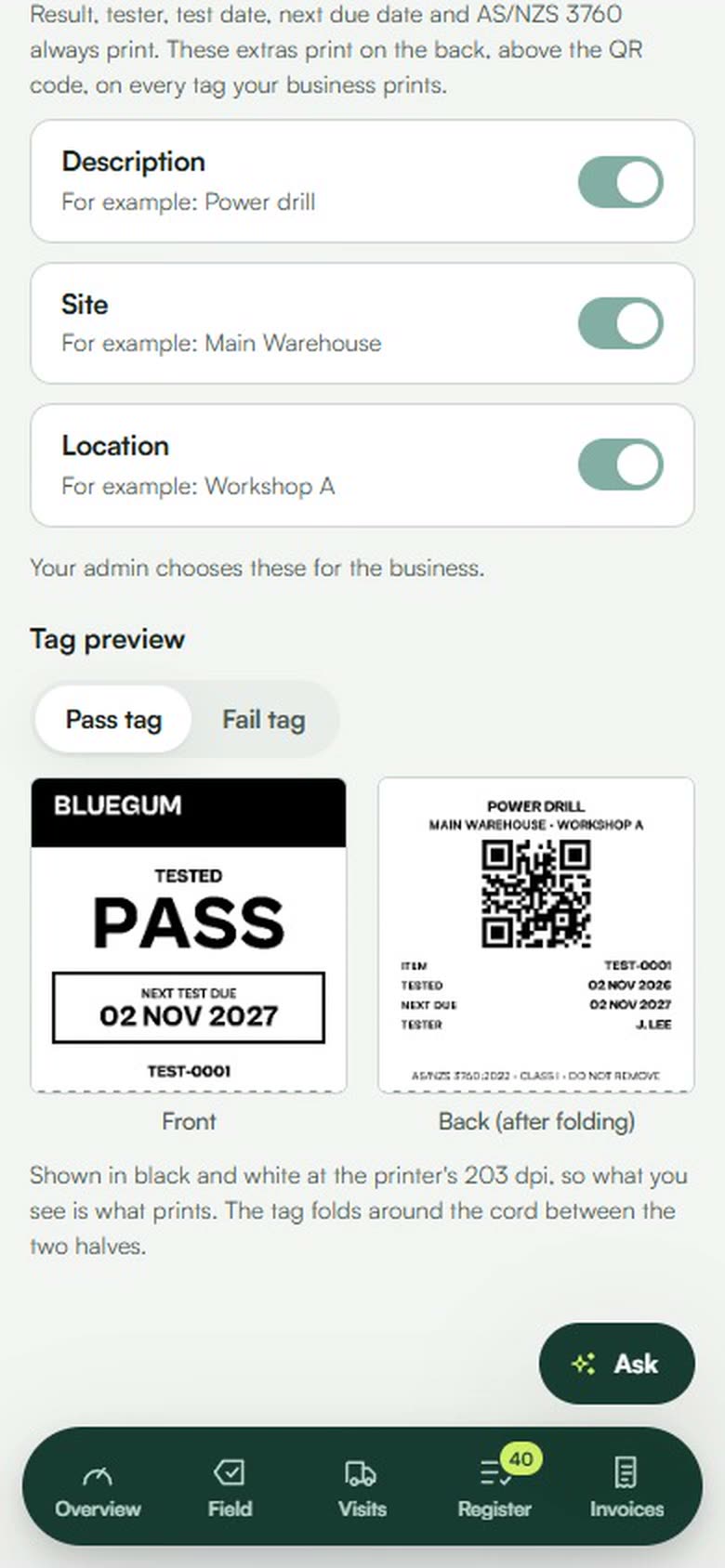
The bottom of the screen shows a sample Pass tag and Fail tag, front and back. They are drawn in black and white at the printer's 203 dpi, so what you see is what prints. The tag folds around the cord between the two halves.
- Result, tester, test date, next due date and AS/NZS 3760 always print.
- Description, site and location can print on the back, above the QR code. Your admin turns each one on or off for the whole business.
- Your logo prints in black only. If it comes out faint or as a solid block in the preview, choose Darker or Inverted.
Good to know
- Printer and label settings are kept on each device, so set them up on every phone or laptop that prints.
- Every tag carries a QR code. Scan it on the next visit and the item opens, ready to test.
- Your own asset numbers print large on the tag. See find any item in the register.
Common questions
Do I need a special printer?
No. A Zebra ZQ520, ZQ521 or Godex RT200 prints straight from the app over Bluetooth. Any other label printer, including a Brother, prints through the print dialog.
Does tag printing cost extra?
No. Tags print instantly on every plan, including Free. See pricing.
Can I print tags from an iPhone?
Yes, through the print dialog. iPhone browsers don't allow websites to talk to Bluetooth printers, so printing straight to a Zebra or Godex needs Chrome or Edge on Android, Windows or a Mac.
What prints on the tag?
The result, who tested it, the test date, the next due date, AS/NZS 3760, the asset number and a QR code, plus your logo. Your admin can add the item's description, site and location on the back.
Can I print a tag again later?
Yes. Print it again from the register or from the visit whenever a tag is damaged or lost.
See your register the way Lyra sees it.
Start free, for as long as you like. No card needed.